| Please note Myzone is not available on the app store in Morocco for Apple users |
Setting up your Myzone account requires just a few simple steps;
You will need to download the Myzone App before you can create an account. Once downloaded, follow these steps;
Creating your Account
On the opening page, tap Create account to begin.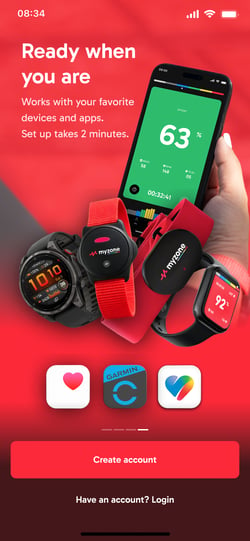
You can choose to sign up using your Apple, Google or Meta details, or to continue with email.
If you choose to use social media as your sign up method, some fields in the account creation process will auto-populate based on the information shared across your social platform.
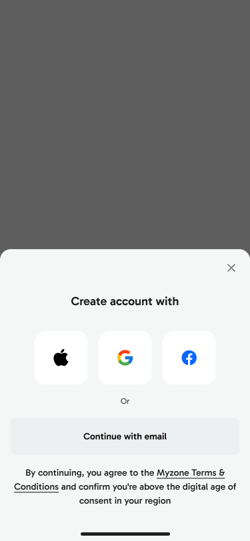
Continue with email
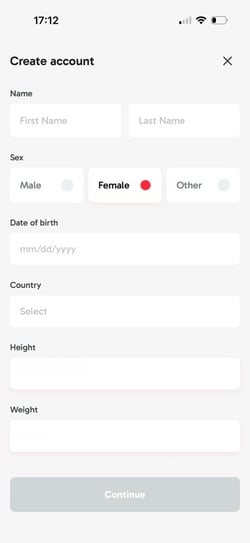
You will need to enter some basic information;
Name
Sex
Date of Birth
Country
Height
Weight
If you are below the digital age of consent for your selected country you will be unable to create an account. For information on how to set up a Youth account please refer to this help article.
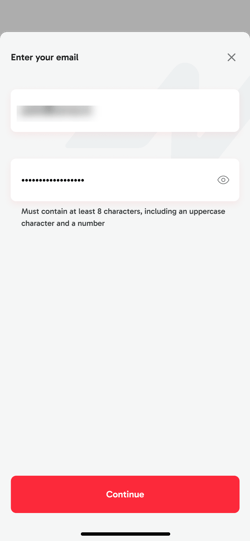
To complete the account set up process, enter an email address that you want your Myzone account to be associated with, and create a password. Passwords must contain at least 8 characters, including an uppercase character and a number.
After entering your email, a verification code will be sent through. Enter this to complete your account setup.
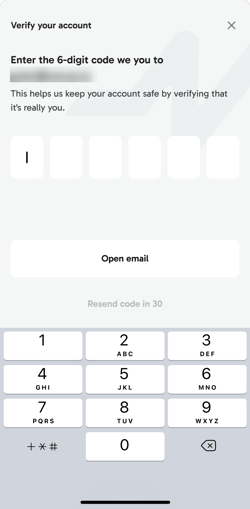
Once your account is verified, you will be able to connect a device and get moving!
Connecting to your Facility
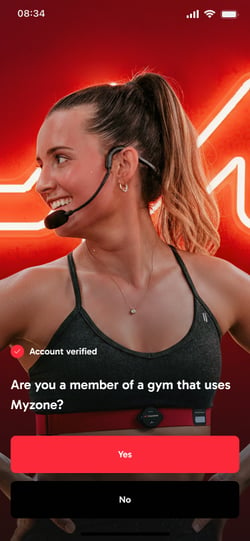
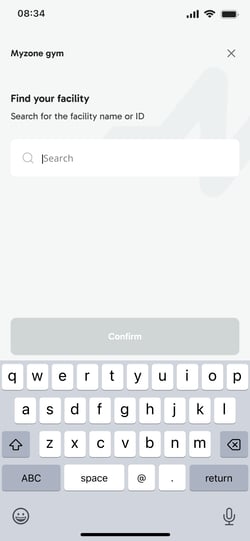
If you are a member of a Facility that uses Myzone, you can sync up your account to your gym using their Facility code or by searching by the Facility name.
Connecting your Device
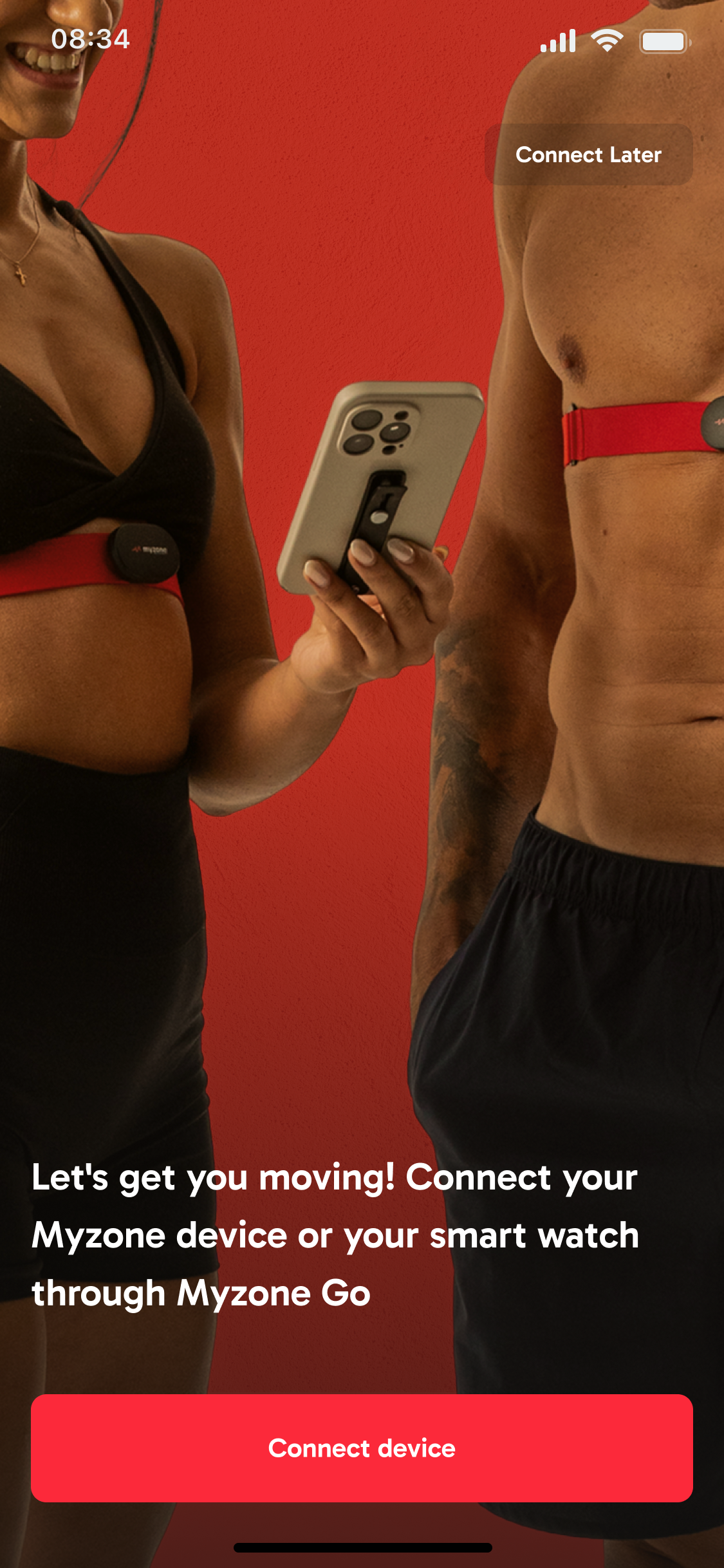
Select the type of Device you own from the list of options provided.
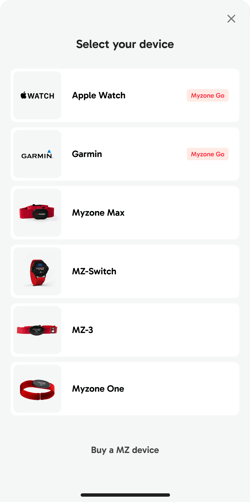
Based on the device you have selected, you will either be asked to place the device on your Chest as though you were about to use it, or to simply turn it on;
Myzone Max, MZ-3 and Myzone One will all prompt you to place the device on your chest and wait for it to turn on.
MZ-Switch will ask you to simply turn the device on.
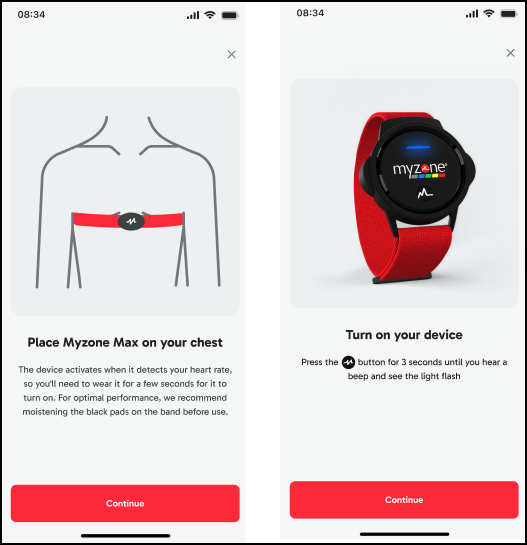
You will see a prompt telling you that Myzone needs permission to pair bluetooth devices to this App - You should select Allow in order for the device to pair successfully. Make sure your device is turned on, and in range of your phone.
With bluetooth enabled, your device will pair with the Myzone App. Once successful you will see confirmation and be asked to check that the correct device has been picked up. If the correct device isn't showing, you have the option to Pair Manually. #
To connect a smartwatch or Garmin device, check out these articles.
Setting up your Profile
With your account created and device paired, there's just a few optional steps required to finalise your profile. Setting up your profile with these details will make sure you get the best Myzone experience.
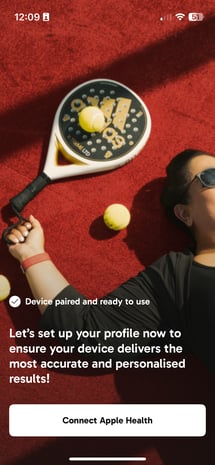
Connecting with Apple Health If you are an iOS user and have an Apple Health profile set up, Myzone can connect with this and populate your biometric data automatically. Simply click Connect Apple Health.
Final steps
Finally, you have the option to complete a few simple questions aimed at helping you get the most from your Myzone device. These are all optional and can be filled in at a later date.
-What's your main goal? Tracking your progress, building habits?
-What are your favourite ways to move? Strength training, HIIT, Yoga - select as many as you like!
Click continue to confirm your selections.
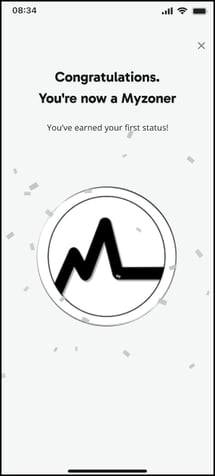
Congratulations - You are now a Myzoner! You are all set to complete your first workout and collect your first MEPs!