
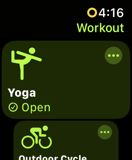
1. Start your workout in Apple Fitness+ or your chosen fitness app
-
Begin your workout as normal.
-
Apple Watch will track your heart rate and record the workout in Apple Health.
2. Open Myzone on your Apple Watch
-
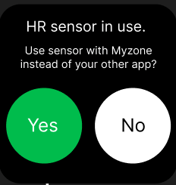
Select the watch sensor. When given the choice by Myzone to use the sensor select NO This will allow Myzone Go to run in the background and read heart-rate data from Apple Health
-
Myzone will create a workout session, but it will not display the live tile while the other app is active.
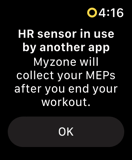
- Tap 'OK' - Myzone will not be able to display your tile, but will collect your MEPs using the data from the other app.
3. Continue your workout
-
Your fitness app remains in control of the workout experience.
-
Myzone runs in the background and collects the data needed to calculate your MEPs.
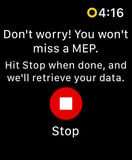
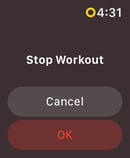
4. When you finish, return to Myzone and tap Stop
-
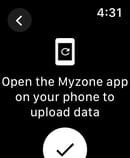
Tapping Stop in Myzone triggers your MEP calculation.
-
Your MEPs will then sync to the Myzone app.
Important to note
-
Myzone can only calculate MEPs after you tap Stop in the Myzone app.
-
If you stop your workout in the other app first, Myzone will no longer receive heart-rate data.
-
To record a workout with Myzone, you must start and stop the session in Myzone.
-
If you want to track using only Myzone, end the third-party workout and start a new session directly in Myzone or select Yes when Myzone asks to use the sensor