
You can now connect to the studio screen directly from your smartwatch.
Simply open the Myzone App on your smartwatch, select Watch as your device, then choose the appropriate activity.
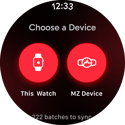
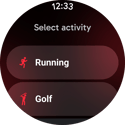
After selecting your activity, if you are in a Myzone enabled gym you will see an option to connect to a display. 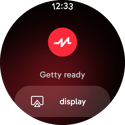
Click the display icon. Note: Location sharing settings must be enabled. If these are not enabled, you must confirm before you will be able to select the console you want to connect to.
Your watch will show you all available in-range screens in the the Facility that your Myzone device is associated with.
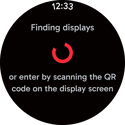
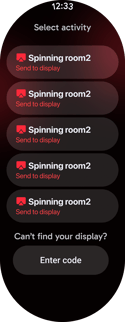
Select which screen you want to connect to, and select Send to display. Your live tile will then show on the screen in that room or area of the gym.
Joining a screen via a QR code
Open the Myzone app on your smart watch. Once you see your tile, you can either:
- Scan the QR code on the screen with your phone. This will open the My Tile page of your phone's Myzone app. You can put the screen to sleep, but keep the Myzone app running on your phone and nearby.
- You can also join via the app by tapping the 'Menu > Classes > In-person' and then tapping 'Join the live board'
Your tile will appear on the screen.
You will need to keep your phone nearby with the app running to keep your tile on the screen. It is okay to put it aside, but it does need to run in your phone's background.
Changing screens
If you move to a new space in your facility and want to join that board, you will need to repeat these processes. The QR code is specific to each screen.
Leave the live board
You can leave the live board by:
- Quitting the Myzone app on your phone.
- Joining the live board in another room--this removes you from the previous screen.
- Ending your workout on your watch.
Myzone Go does not use the receiver to connect to the screen, so the tile will not disappear when you move away from the system. You must choose one of the three options above to remove your tile from the display.